4. install vsftpd
1. install vsftpd
sudo yum update
sudo yum install vsftpd
# verify the installed version of Vsftpd :
sudo rpm -qi vsftpd
# Start and enable the Very Secure FTP Daemon to run automatically on system boot.
sudo systemctl enable vsftpd --now
# Check the status of the service.
systemctl status vsftpd
2. create FTP user and user directory
user : “vsftpduser” >> “wmftp”
folder : ftp_folder >> main
# create and grant dedicated user access to the FTP server
sudo adduser wmftp
sudo passwd wmftp  # zie KP

# create  FTP directories with the necessary permissions.
sudo mkdir -p /home/wmftp/main
sudo chmod -R 750 /home/wmftp/main
sudo chown wmftp: /home/wmftp/main
# grant user wmftp access to the Vsftpd server, add them to the **_/etc/vsftpd/user_list_** file.
sudo bash -c 'echo wmftp >> /etc/vsftpd/user_list'
3. configure vsftpd
# some adjustments to the Vsftpd config file
sudo nano /etc/vsftpd/vsftpd.conf

# Allow remote access to local users then block anonymous users.
anonymous_enable = NO
local_enable = YES
# Grant user permission to run ant FTP commands.
write_enable = YES
# Restrict user access to their home directory only and grant the write permissions.
chroot_local_user=YES
allow_writeable_chroot=YES
# Set custom ports to enable passive FTP connections.
pasv_min_port=30000
pasv_max_port=31000
# Allow dedicated Vsftpd users in the user_list file to access the FTP server.
userlist_file=/etc/vsftpd/user_list
userlist_enable=YES
userlist_deny=NO

# With the above changes made, restart the server.
sudo systemctl restart vsftpd
4. Open FTP Ports on FirewallD
zie [[2. install some tools#firewall]]
With above configuration, we have passive communication port range between 30000-31000.
We need to allow these ports through the firewall.
Also, we need to allow port range 20-21 for FTP data and traffic.
sudo firewall-cmd --permanent --add-port=20-21/tcp
sudo firewall-cmd --permanent --add-port=30000-31000/tcp
# Apply the changes to the firewall daemon.
sudo firewall-cmd --reload
6. test ftp
# test the FTP connection using the below command:
ftp {serverIP}
ftp 80.209.239.124
output :
6. Vsftpd SSL/TLS Configuration
For security and encryption reasons on the FTP server, we will generate SSL certificates
# generate self-signed certificates.
sudo openssl req -x509 -nodes -days 3650 -newkey rsa:2048 -keyout /etc/vsftpd.pem -out /etc/vsftpd/vsftpd.pem
in the provide the required country name, state/province details etc ,
BE O-VL GENT CNM DBA 80.209.239.124 wardm@tutanota.com
see screen :
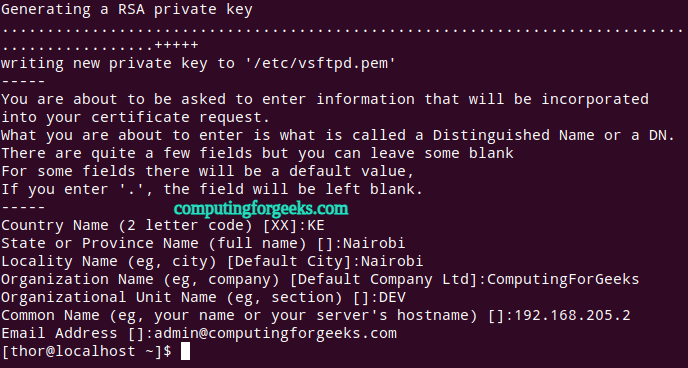
Now get back to the Vsftpd config file and add the generated certificates path.
sudo nano /etc/vsftpd/vsftpd.conf
#Add these lines###
rsa_cert_file=/etc/vsftpd/vsftpd.pem
rsa_private_key_file=/etc/vsftpd.pem

#Enable SSL##
ssl_enable=YES
allow_anon_ssl=NO
force_local_data_ssl=YES
force_local_logins_ssl=YES
ssl_tlsv1=YES
ssl_sslv2=NO
Save the changes and restart Vsftpd.