Improve video perfomance
How to Stop YouTube Videos From Buffering and Lagging
Even with a good internet connection, you may sometimes find YouTube Videos buffering, lagging, stuttering or not at all loading.
Buffering or lagging on certain occasions can be attributed to YouTube servers coming under the strain of billions of users trying to watch videos at the same time.
However, if you find YouTube Videos constantly buffering on your computer, it is likely that there are other reasons for the poor performance of YouTube on your computer.
Some ways to fix this.
1. Clear Browser Cache
The first step that you can take to fix the problem of YouTube Videos buffering and lagging on your computer is to clear the browser cache.
After clearing the browser cache, try to play YouTube Videos on your computer and see if the problem is fixed.
2. Close Browser Tabs
Keeping too many open browser tabs can leave your computer with inadequate resources to Run YouTube videos.
Hence, make sure that you close all the unnecessary browser tabs and free up resources on your computer for playing YouTube videos.
3. Watch Videos in Lower Quality
If your Internet is working fine and you are only having problems with YouTube, it is likely that the problem of YouTube buffering on your computer is due to high load on YouTube servers.
If this is the case, you can either wait for YouTube servers to normalize or continue watching Videos in lower quality. For example, you can switch the Video quality from 720p to 480p or lower.
Open a YouTube video, click on the cog-wheel shaped Settings icon and click on Quality.
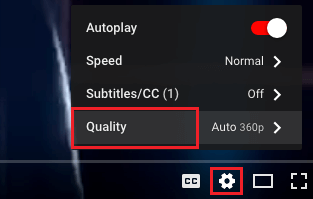
choose a lower non HD setting (say 360p) and see if you are able to watch the video without buffering.
3. Modify the Video URL
Depending on your location, you might be able to improve the performance of YouTube videos by replacing the “www” part of the video URL address with “ca.” or “uk.”
For example, let us assume that you are watching “In My Feelings” by Drake and you find the video buffering on your computer.
Simply, change the “www” part in the URL with “ca” if you are in Canada or with “uk” if you are in UK and hit the enter key on the keyboard of your computer.
- Original url : https://www.youtube.com/watch?v=DRS_PpOrUZ4
- Revised url: https://uk.youtube.com/watch?v=DRS_PpOrUZ4 or https://ca.youtube.com/watch?v=DRS_PpOrUZ4 and hit the enter key on the keyboard of your computer.
4. Update Drivers
It is possible that Drivers for the Display adapter on your computer have become outdated and incompatible with the latest developments or changes on YouTube.
Windows :
Right-click on the Start button and click on Device Manager in the menu that appears.
On the Device Manager screen, expand the entry for “Display Adapters”. Next, right-click on the Graphics Card and click on Update Driver option.
On the next screen, click on Search automatically for updated driver software and wait for Windows to search and install the latest driver.
Once the device drivers are updated, make sure that you Restart your computer.
5. Block IP Ranges
In order to reduce origin server loads, YouTube Videos are often delivered using CDN’s (Content Delivery Networks). If the CDN networks get too crowded or become unbalanced, it can result in choppy or inconsistent delivery of YouTube videos.
A solution to this problem is to block the IP address ranges associated with the CDNs, which results in delivery of Videos from the origin source.
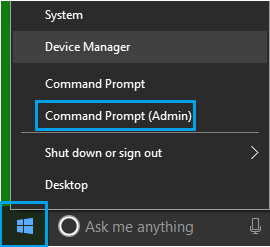
Right-click on the Start button and click on Command Prompt Admin in the menu that appears
On the Command Prompt window, type netsh advfirewall firewall add rule name=”YouTubeTweak” dir=in action=block remoteip=173.194.55.0/24,206.111.0.0/16 enable=yes
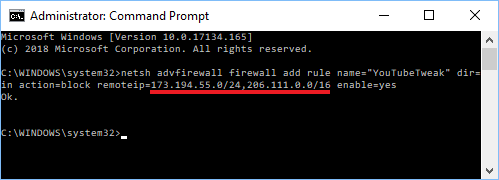
Press the Enter key on the keyboard of your computer to add this blocking rule and close the Command Prompt window.
If this is not working and you want to remove the rule, open Command Prompt Admin and type the following command:
netsh advfirewall firewall delete rule name=”YouTubeTweak” and press the enter key on the keyboard of your computer.